



Start with confirmation
Give guests their order details and the next step after checkout.
One connected platform
Your business, beautifully connected.
Every detail, connected. Explore all features.
Built around your business
Your business has its own rhythm.
Ready to begin? Get started online.
Explore at your own pace
See the possibilities. Find your next step.
Looking for a definition? Browse the glossary.

One connected platform
Platform

Built around your business
Solutions
 Start with a fresh perspective.See how your website and listings show up online, and where there’s room to improve.Get your free audit All solutions

Explore at your own pace
Resources
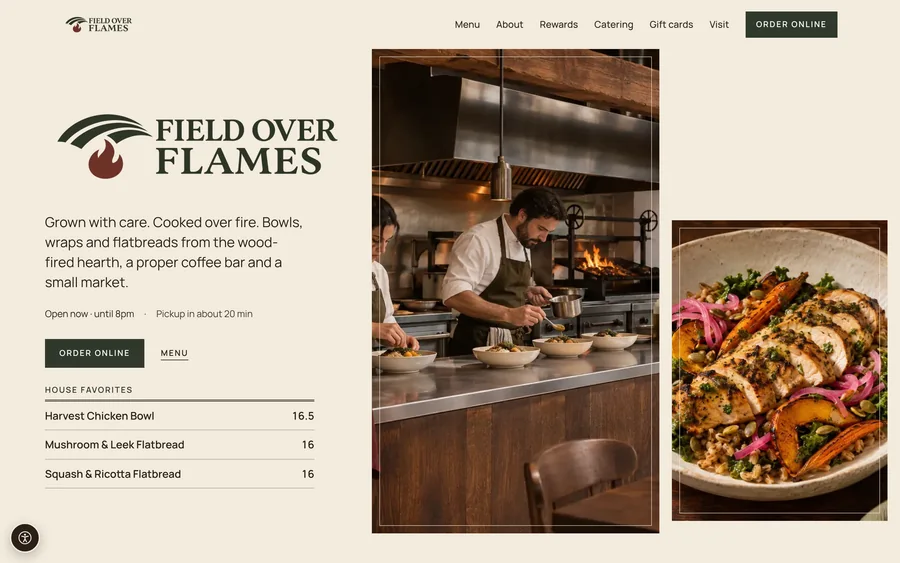 Your brand, elevated.Explore the curated looks in the visual studio and find your starting point.Explore the visual studio Explore the glossary
Order tracking & guest updates
Give guests a useful view of their order, from confirmation to collection or delivery. Keep your team and the customer working from the same progress.
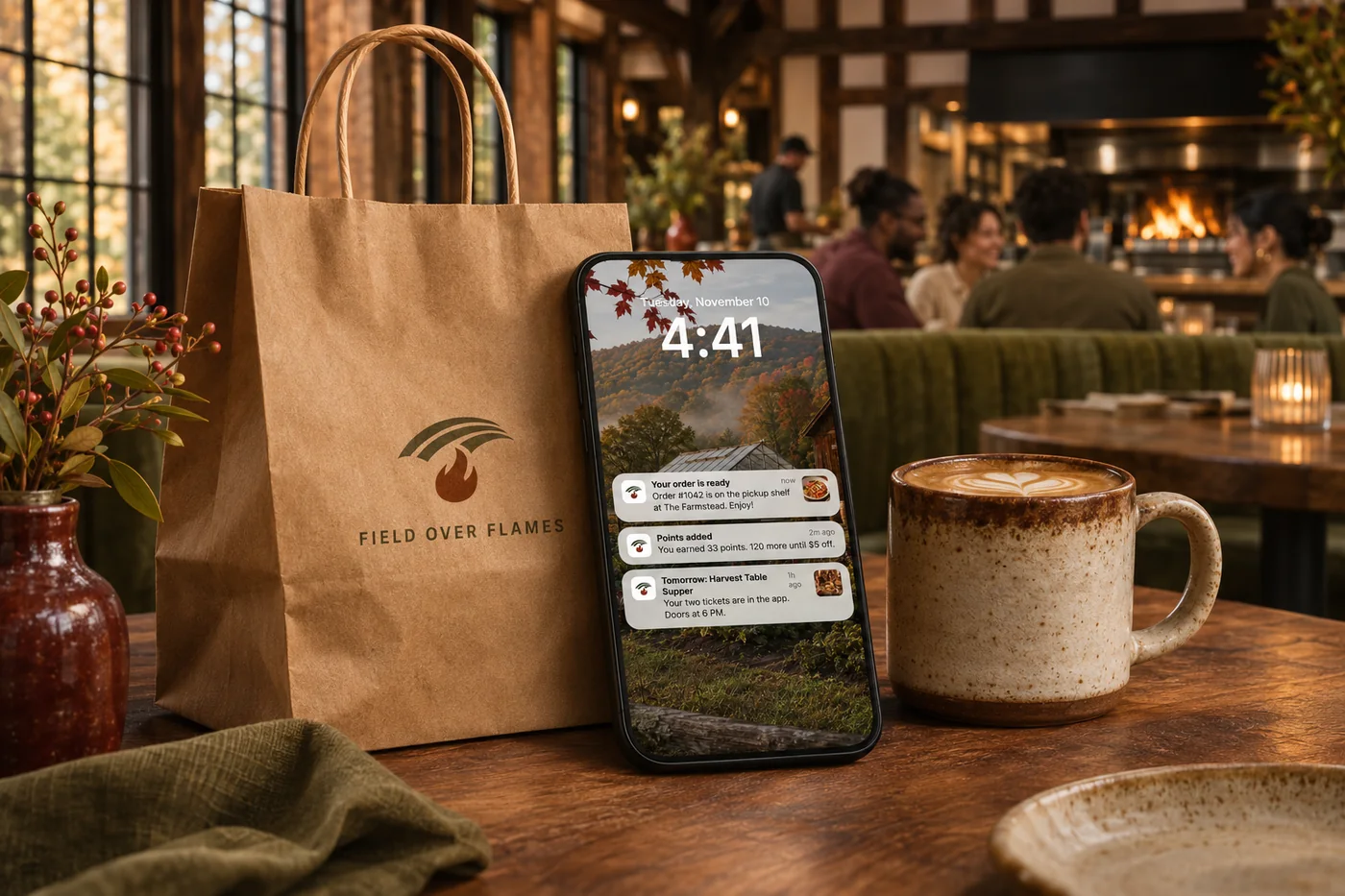
Give guests their order details and the next step after checkout.
Show the status and collection information that help guests know what to expect.
Bring tracking and delivery progress together for your own drivers and supported partner couriers.
Use order notifications to keep guests informed, separate from promotional campaigns.
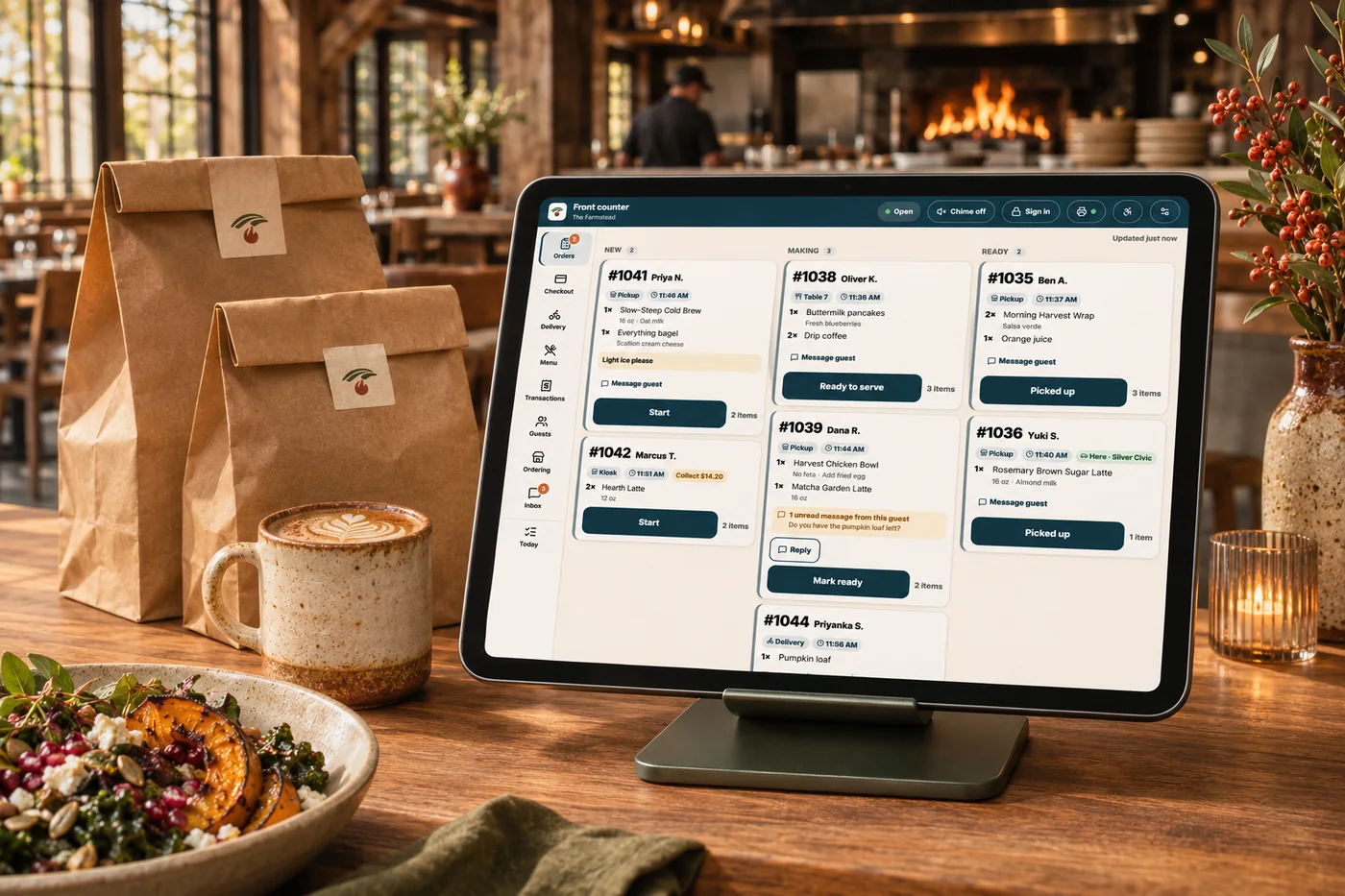
A confirmed payment is only the start of the experience. Guests need to know what happens next, while your team needs visibility into preparation and handoff. Connected order status and delivery tracking give both sides a clearer picture. For delivery, the shared workspace brings your drivers and partner couriers into the same operational view.
Part of a more connected business
Delivery management
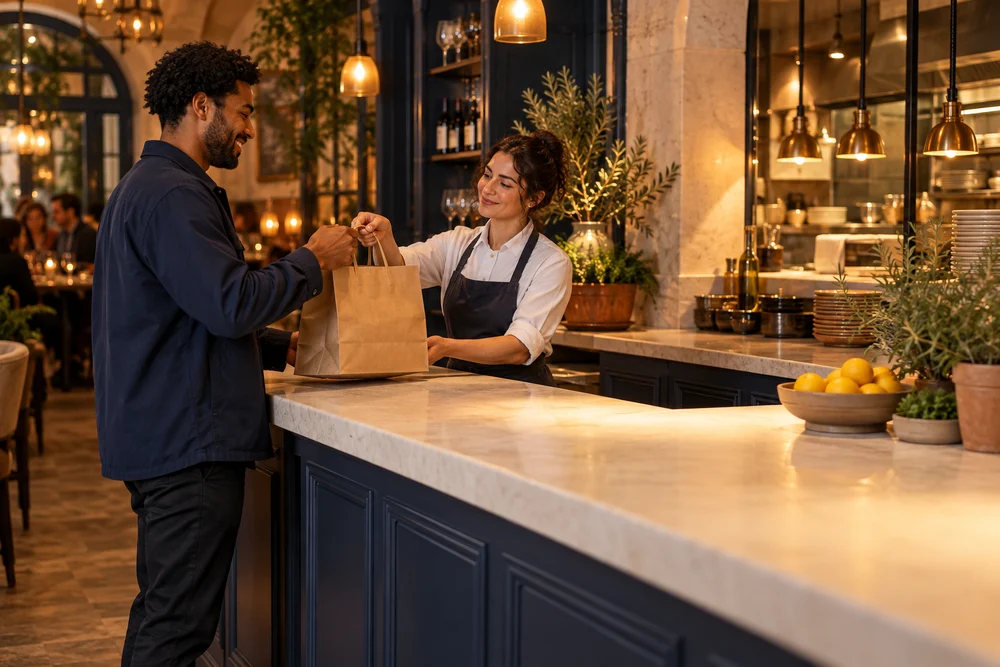
Assign, route, track and communicate from one delivery workspace.
Explore delivery management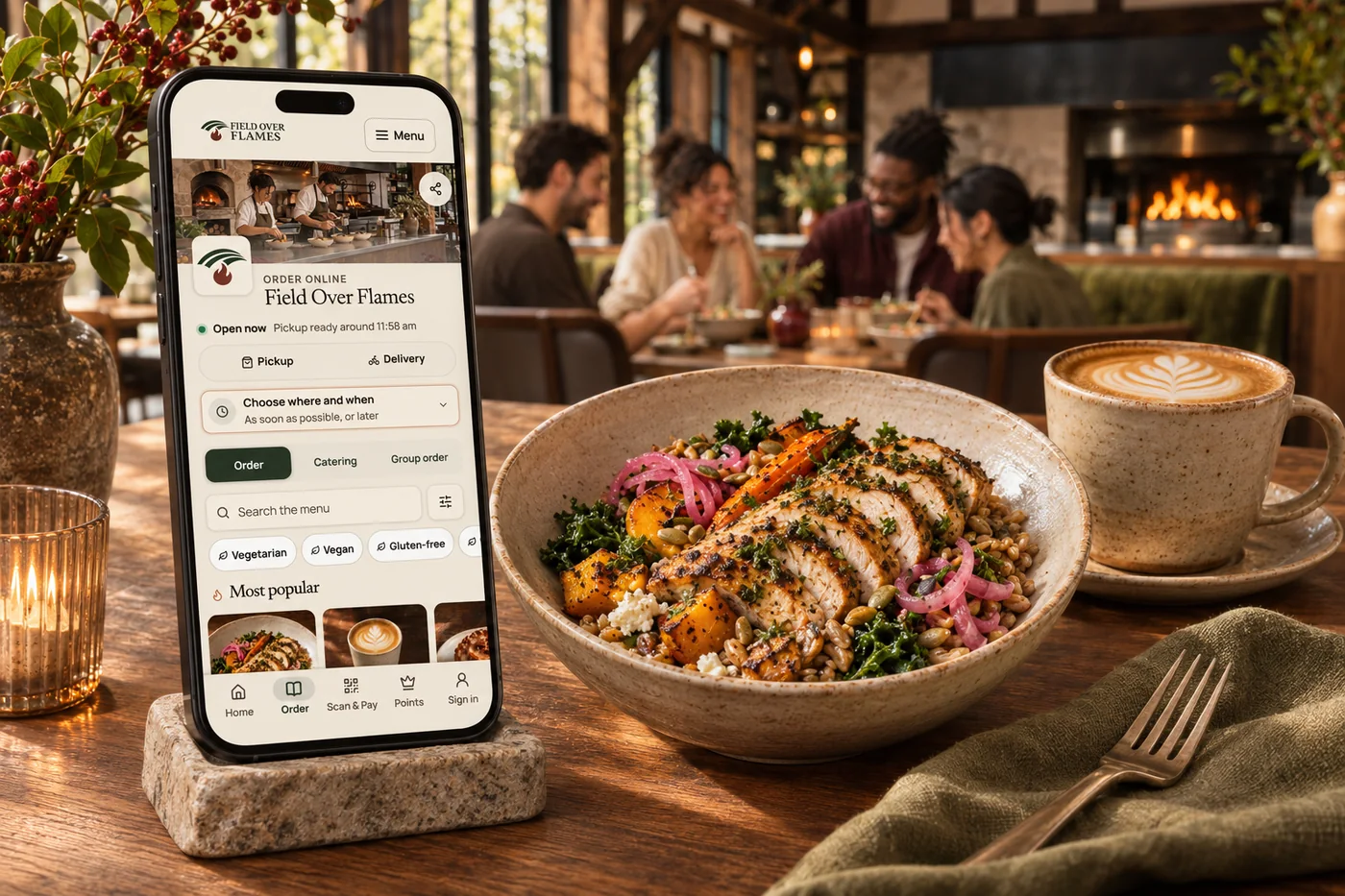
Pickup & scheduled ordering
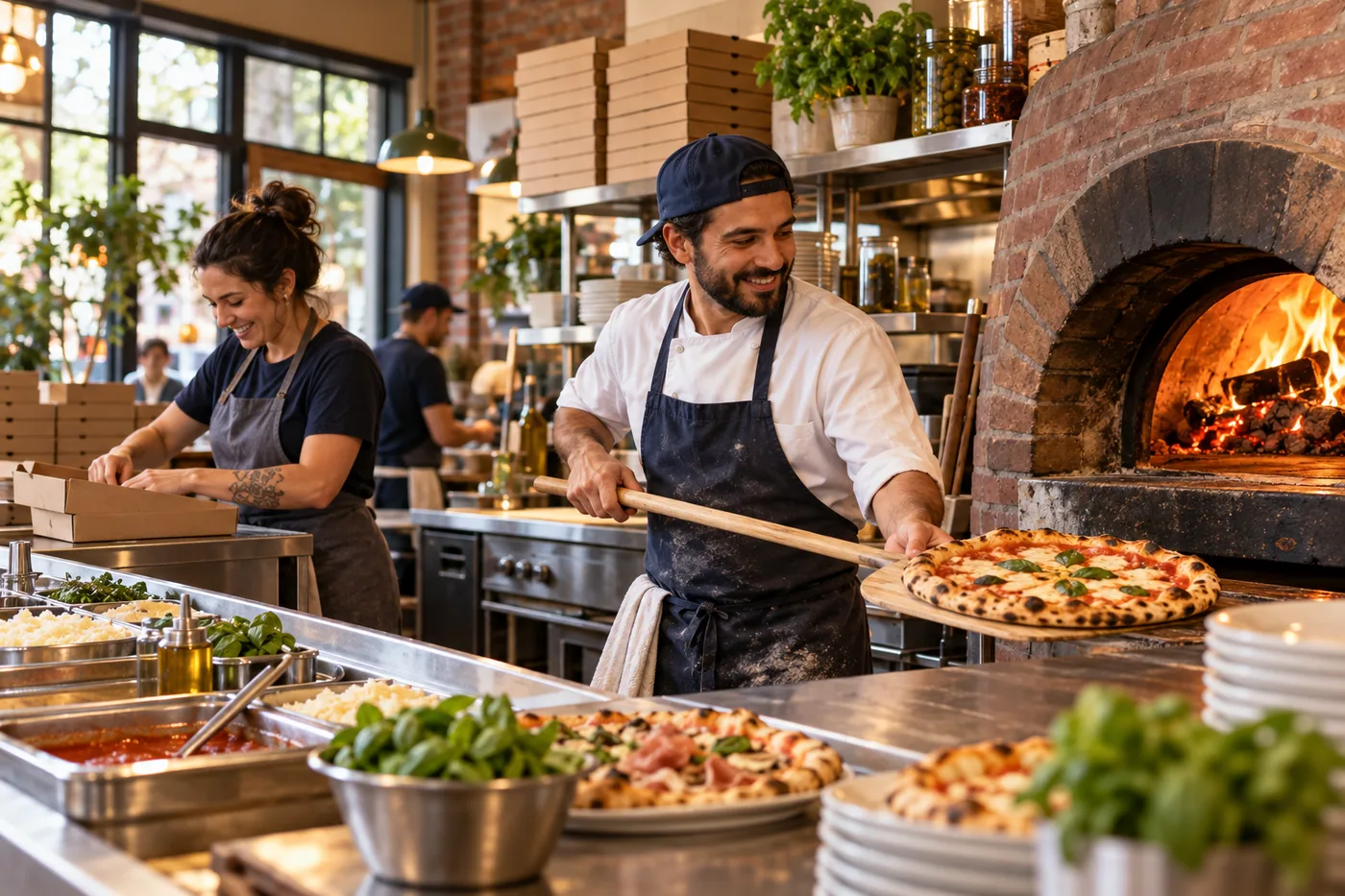
Make ordering ahead feel simple. Give guests clear pickup choices while your team manages preparation times, availability and the pace of service.
Explore pickup & scheduled orderingYes. Supported deliveries include tracking and status updates. What appears depends on the driver or courier connection and the latest information received.
Yes. Your driver app and restaurant delivery workspace connect assignment, progress and guest tracking alongside supported partner deliveries.
No. Transactional order updates and promotional messaging serve different purposes and use separate messaging permissions and settings.
Yes. The delivery workspace brings driver assignment and order progress together, helping the restaurant follow the handoff and respond to issues.
Give guests their order details and the next step after checkout. Bring it together with your brand and the tools your team already uses.

You are leaving shopandtable.com
We link out when a vendor’s own documentation or a regulator is the right source. The site you are about to visit has its own terms, its own privacy practices and its own content; none of it is covered by our Privacy Policy or Terms of Service, and a link is not an endorsement. It will open in a new tab.