


Give guests their own ordering space
Let guests browse, customize and place an order on a branded kiosk. Your team stays available when someone needs a hand.
One connected platform
Your business, beautifully connected.
Every detail, connected. Explore all features.
Built around your business
Your business has its own rhythm.
Ready to begin? Get started online.
Explore at your own pace
See the possibilities. Find your next step.
Looking for a definition? Browse the glossary.
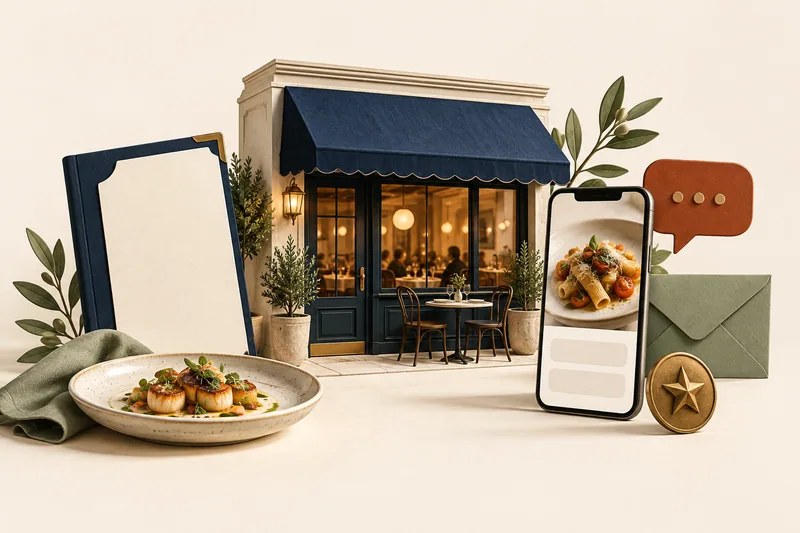
One connected platform
Platform
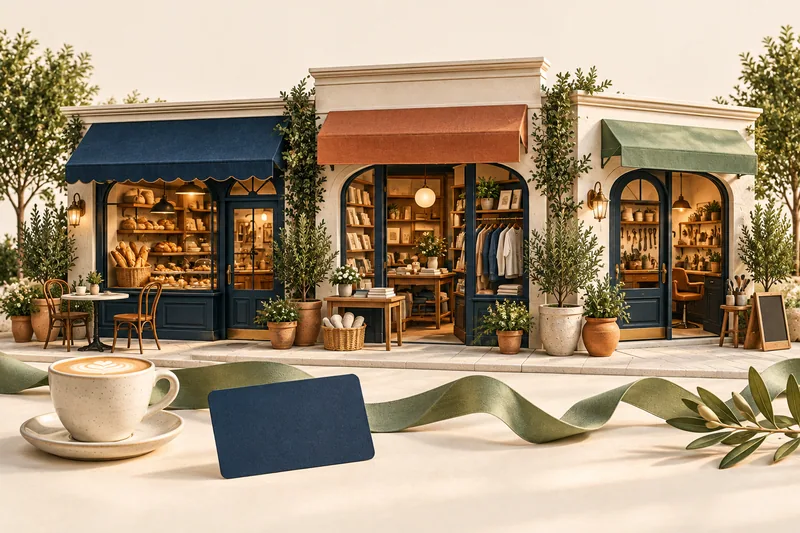
Built around your business
Solutions
 Start with a fresh perspective.See how your website and listings show up online, and where there’s room to improve.Get your free audit All solutions
Explore at your own pace
Resources
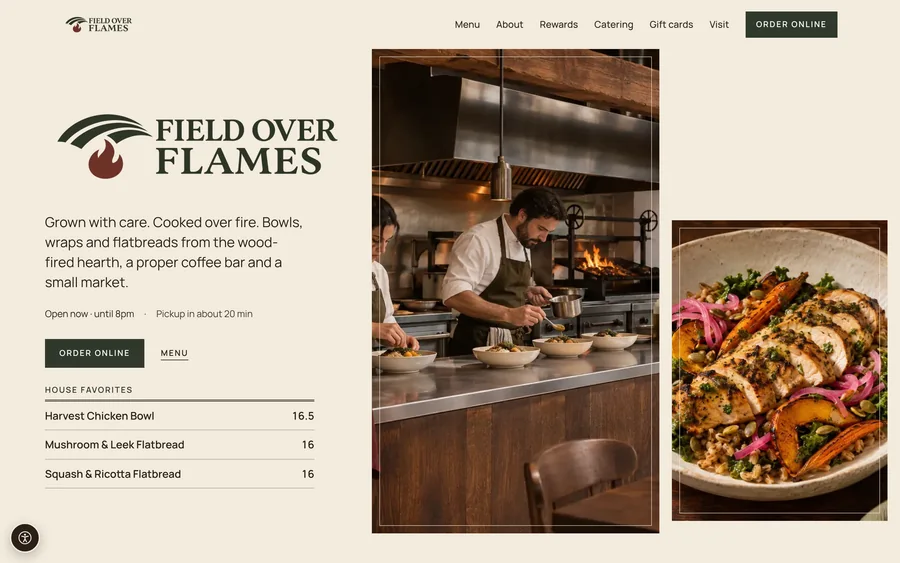 Your brand, elevated.Explore the curated looks in the visual studio and find your starting point.Explore the visual studio Explore the glossary
Kiosks & digital displays
Give customers a clear way to explore, order and see what comes next. Self-order kiosks and digital displays carry your brand from the first choice to the pickup counter.
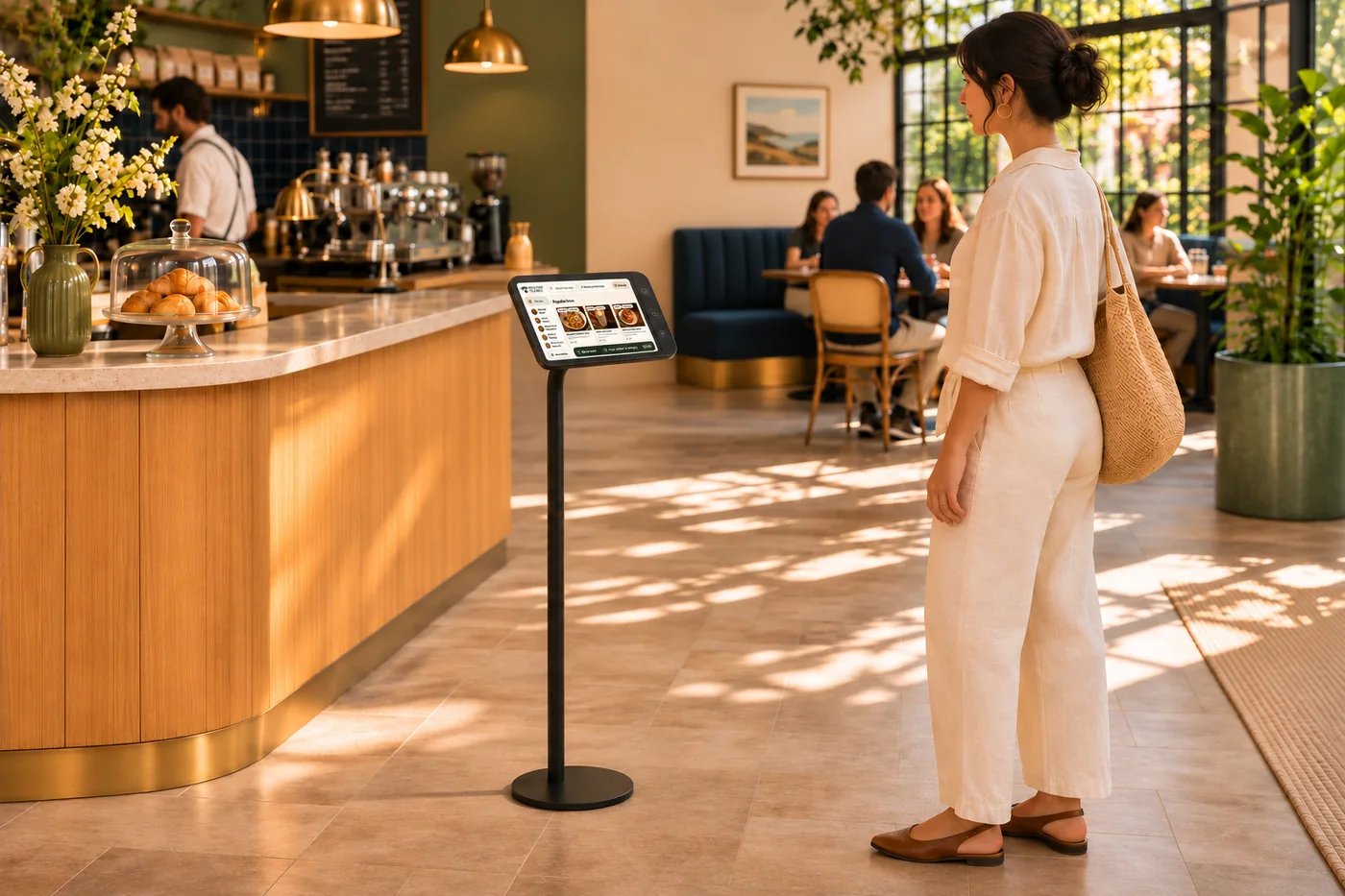
Let guests browse, customize and place an order on a branded kiosk. Your team stays available when someone needs a hand.
Use digital menu boards to show food, prices and availability. Choose layouts that fit your space and the way people order.
Schedule promotions and screen content around the day. Order-status displays help customers see what is ready to collect.
Carry your colors, photography and connected menu details across the screens in your business. Give each screen a useful role.
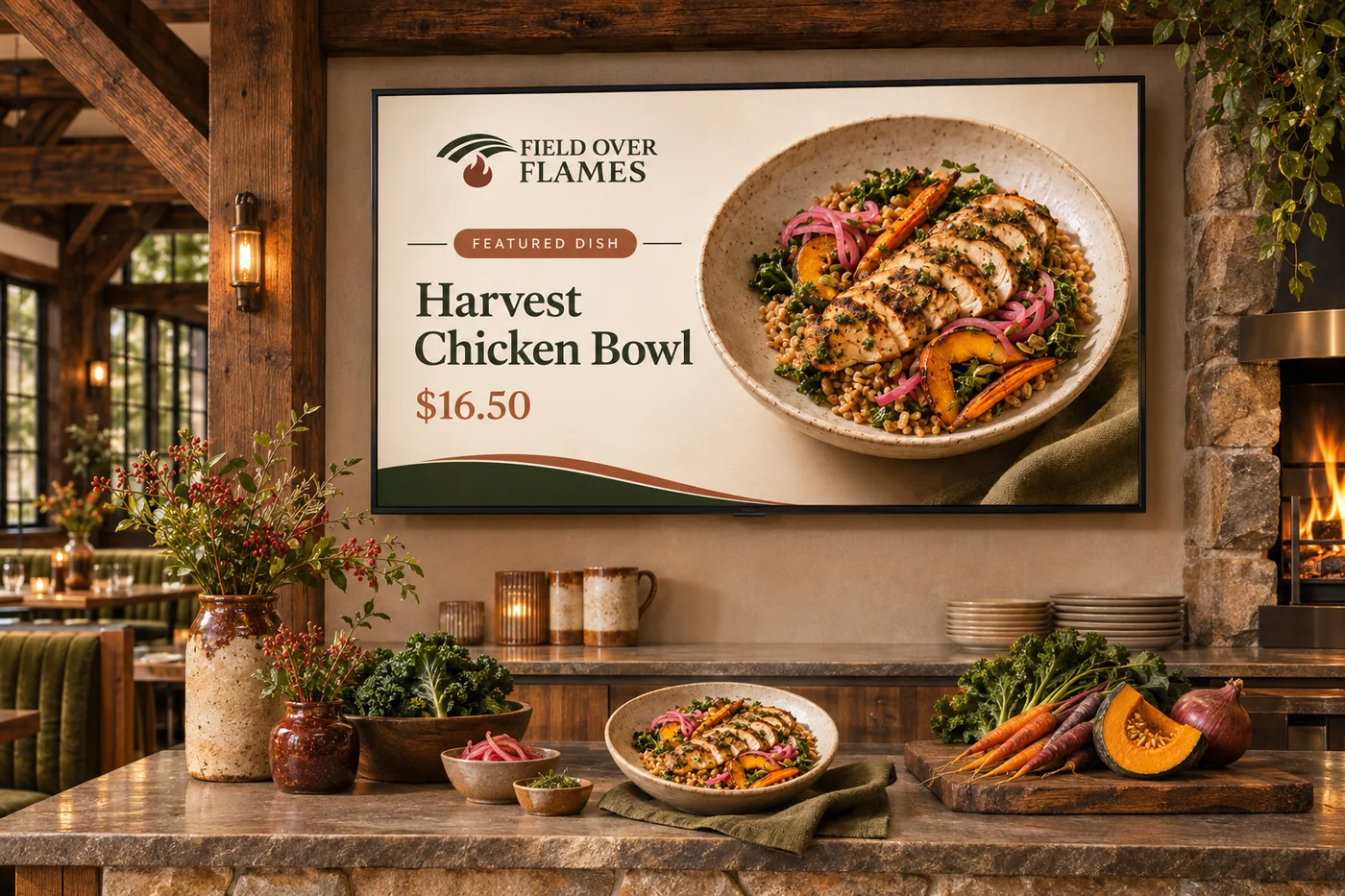
A kiosk invites someone to interact and place an order; a digital display helps everyone see the menu, a promotion or a pickup update. Choose either or bring them together around your counter and service flow. We confirm the screens, payment setup and supported connections before installation.
Part of a more connected business
Self-order kiosks
A self-order experience that feels like your business. Let guests explore the menu and make their choices while your team keeps service moving.
Explore self-order kiosks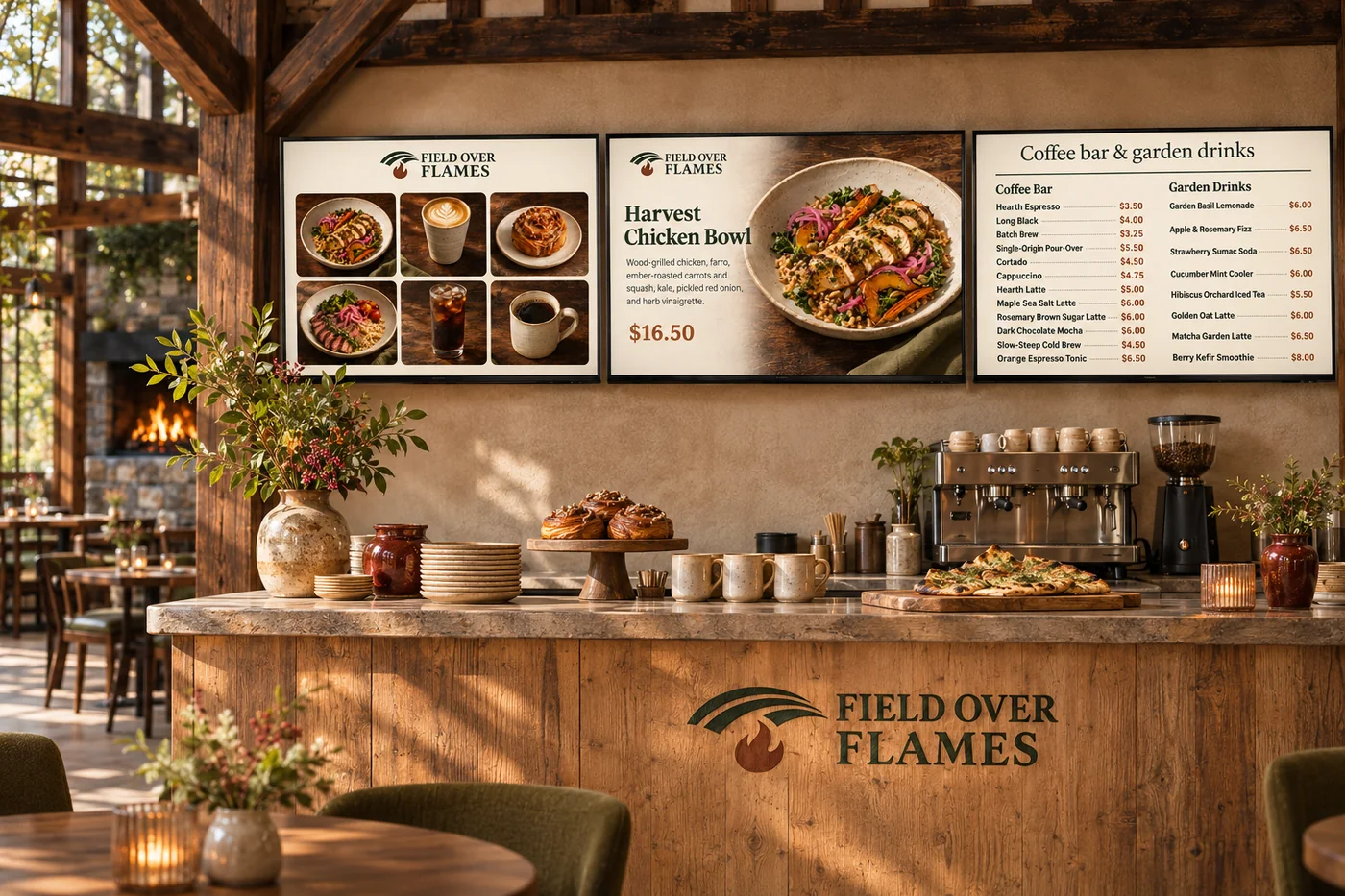
Digital menu boards
Turn screens into a natural part of your space. Show your food, your prices and what is ready to collect, in a design that belongs to your brand.
Explore digital menu boardsA kiosk lets a customer browse, customize and place an order. Digital displays show menus, promotions or order-status information to people in your space.
No. Choose self-order kiosks, digital displays or both, based on your space and how you serve customers.
We confirm the screen, payment reader and supported checkout configuration for kiosks, and the screen and playback setup for digital displays. Hardware and installation needs depend on your chosen setup.

Let guests browse, customize and place an order on a branded kiosk. Your team stays available when someone needs a hand. Bring it together with your brand and the tools your team already uses.

You are leaving shopandtable.com
We link out when a vendor’s own documentation or a regulator is the right source. The site you are about to visit has its own terms, its own privacy practices and its own content; none of it is covered by our Privacy Policy or Terms of Service, and a link is not an endorsement. It will open in a new tab.