


Show the food
Choose a photo-led grid or a clean menu list, with the details guests need.
One connected platform
Your business, beautifully connected.
Every detail, connected. Explore all features.
Built around your business
Your business has its own rhythm.
Ready to begin? Get started online.
Explore at your own pace
See the possibilities. Find your next step.
Looking for a definition? Browse the glossary.
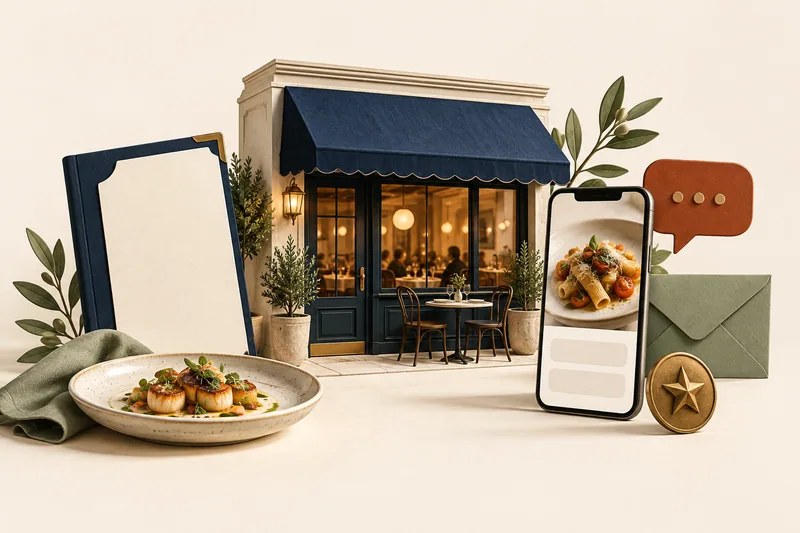
One connected platform
Platform

Built around your business
Solutions
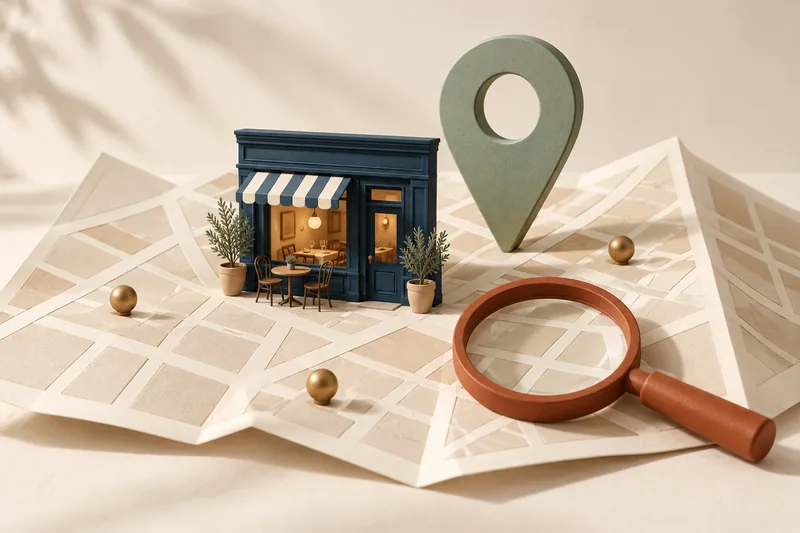 Start with a fresh perspective.See how your website and listings show up online, and where there’s room to improve.Get your free audit All solutions

Explore at your own pace
Resources
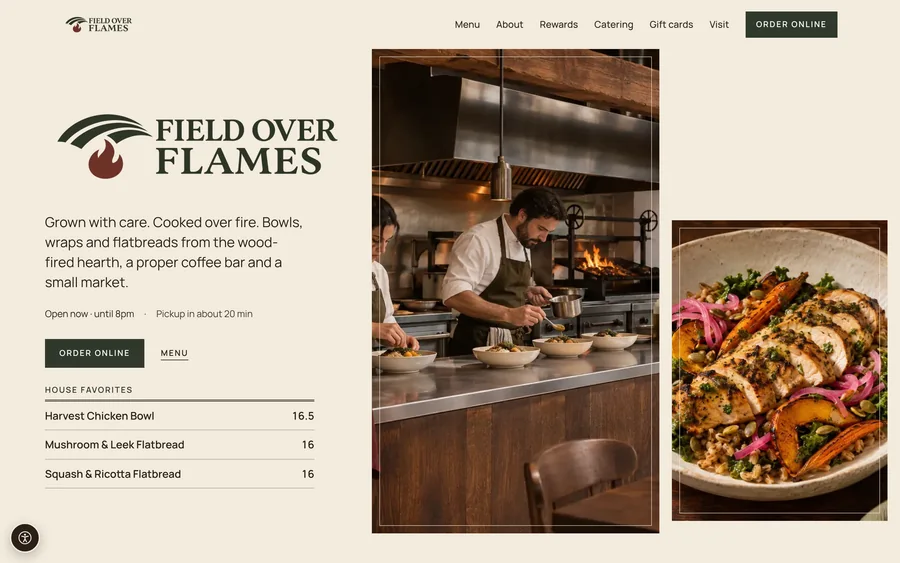 Your brand, elevated.Explore the curated looks in the visual studio and find your starting point.Explore the visual studio Explore the glossary
Digital menu boards
Turn screens into a natural part of your space. Show your food, your prices and what is ready to collect, in a design that belongs to your brand.
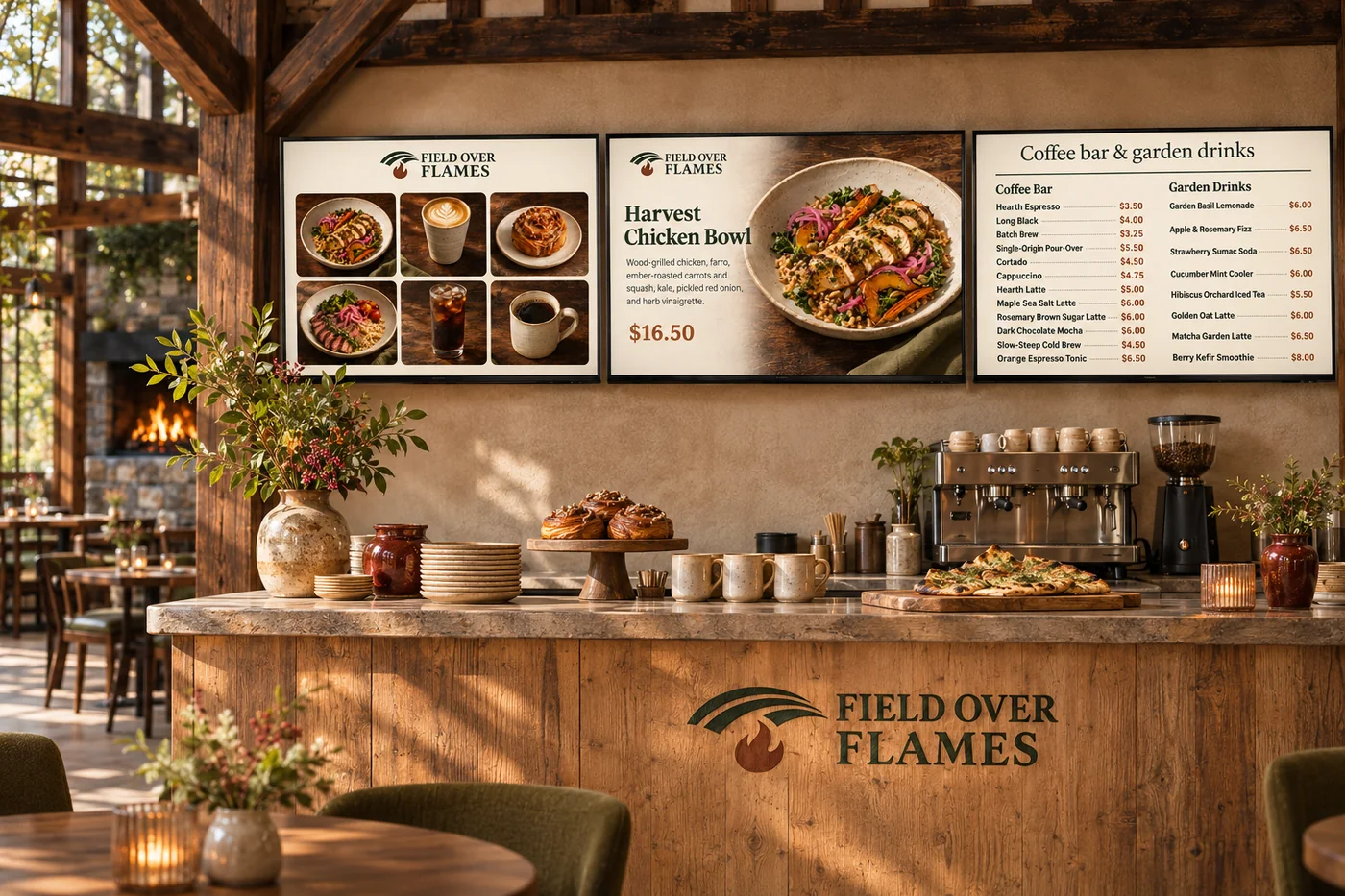
Choose a photo-led grid or a clean menu list, with the details guests need.
Bring live prices and sold-out items onto your connected boards.
Schedule playlists and video slides, with layouts across a wall of screens.
Use QR codes to lead guests to ordering, rewards or your app.
Order notification screen · Included in every plan
Let guests see what’s being made and what’s ready to collect. Bring orders from your app, kiosk, website and POS through Square onto one branded screen.
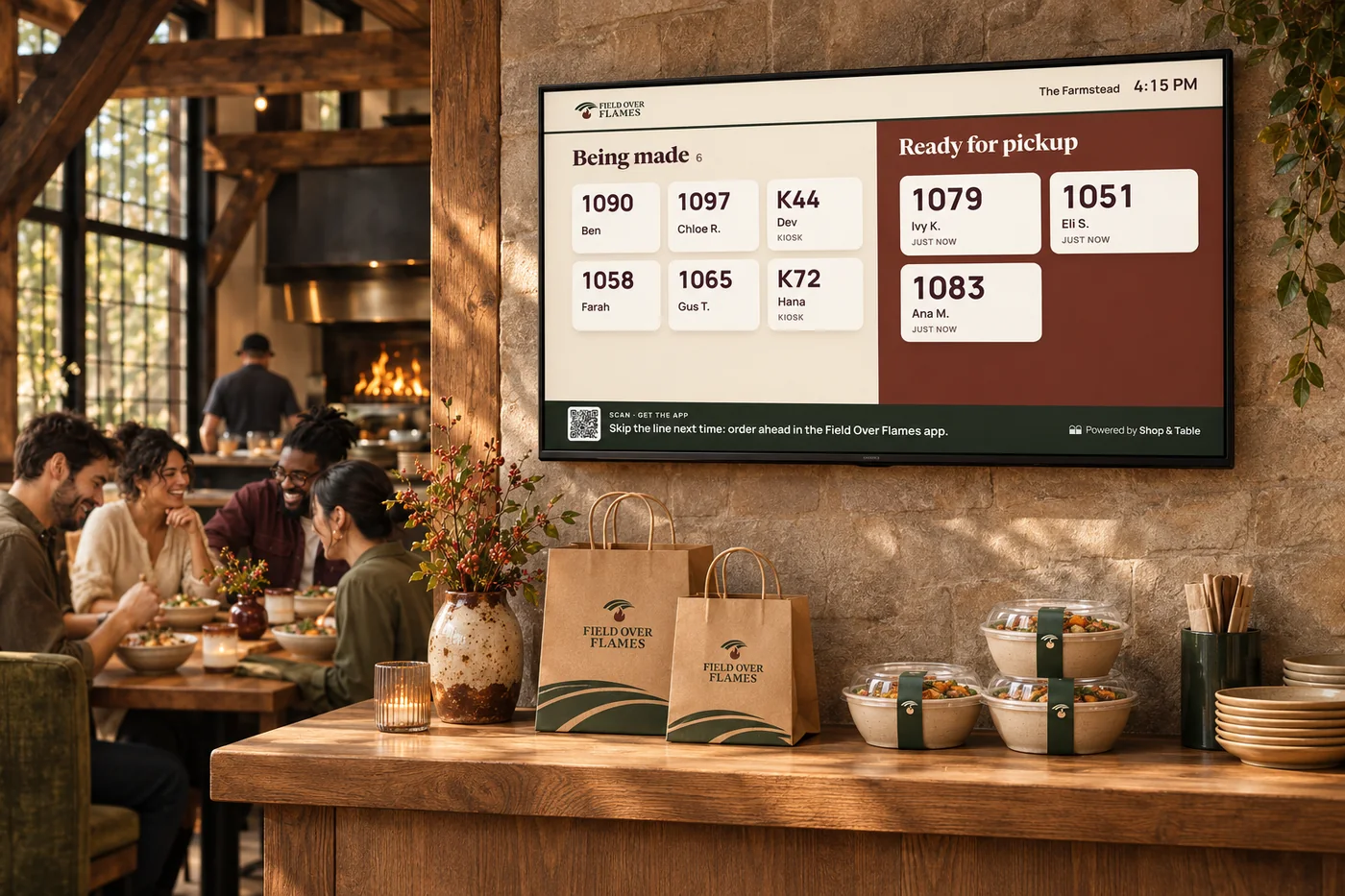
Clear order numbers and status updates help guests know when to step forward, giving your team fewer interruptions at the counter.
When orders slow down, the display can switch to events, app reminders, loyalty and featured menu items.
Promotional messages can scroll alongside order updates during busy times, too—helping guests discover more while they wait.
A screen for every occasion
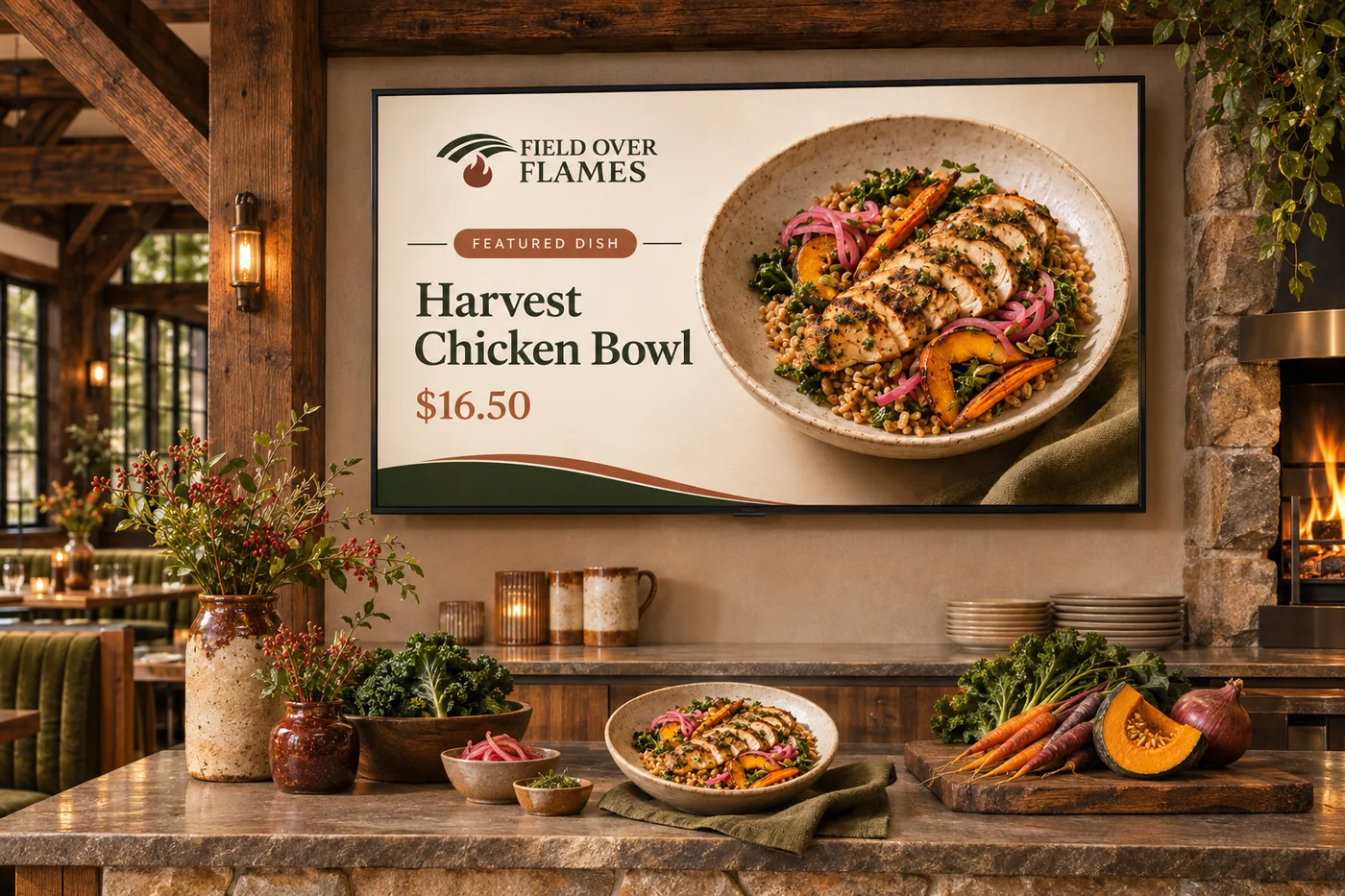
Give a signature dish or fresh-baked favorite room to shine. Use a focused display to help guests notice something they might love.
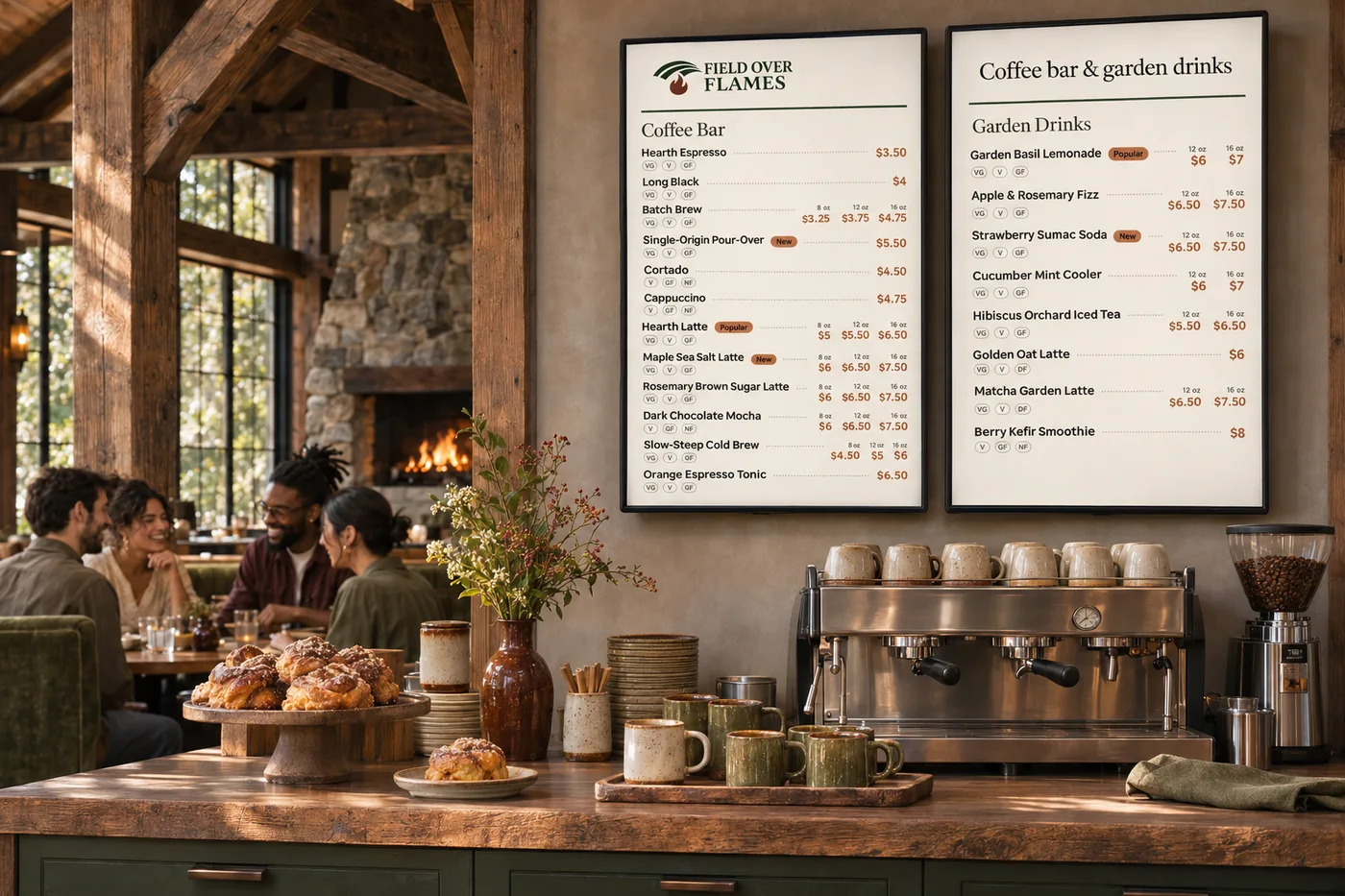
Choose a menu layout that fits your screen and space. Present the food and prices clearly so guests can take their time deciding.

Give seasonal dishes and timely offers a place at the counter. Keep the display current as your menu and upcoming occasions change.
Outdated prices and crowded boards make it harder to choose at the counter. Bring connected menu information into branded photo grids, clear lists and promotional displays. Keep the food easy to browse and your message consistent with the website, app and ordering experience guests already know.
Part of a more connected business
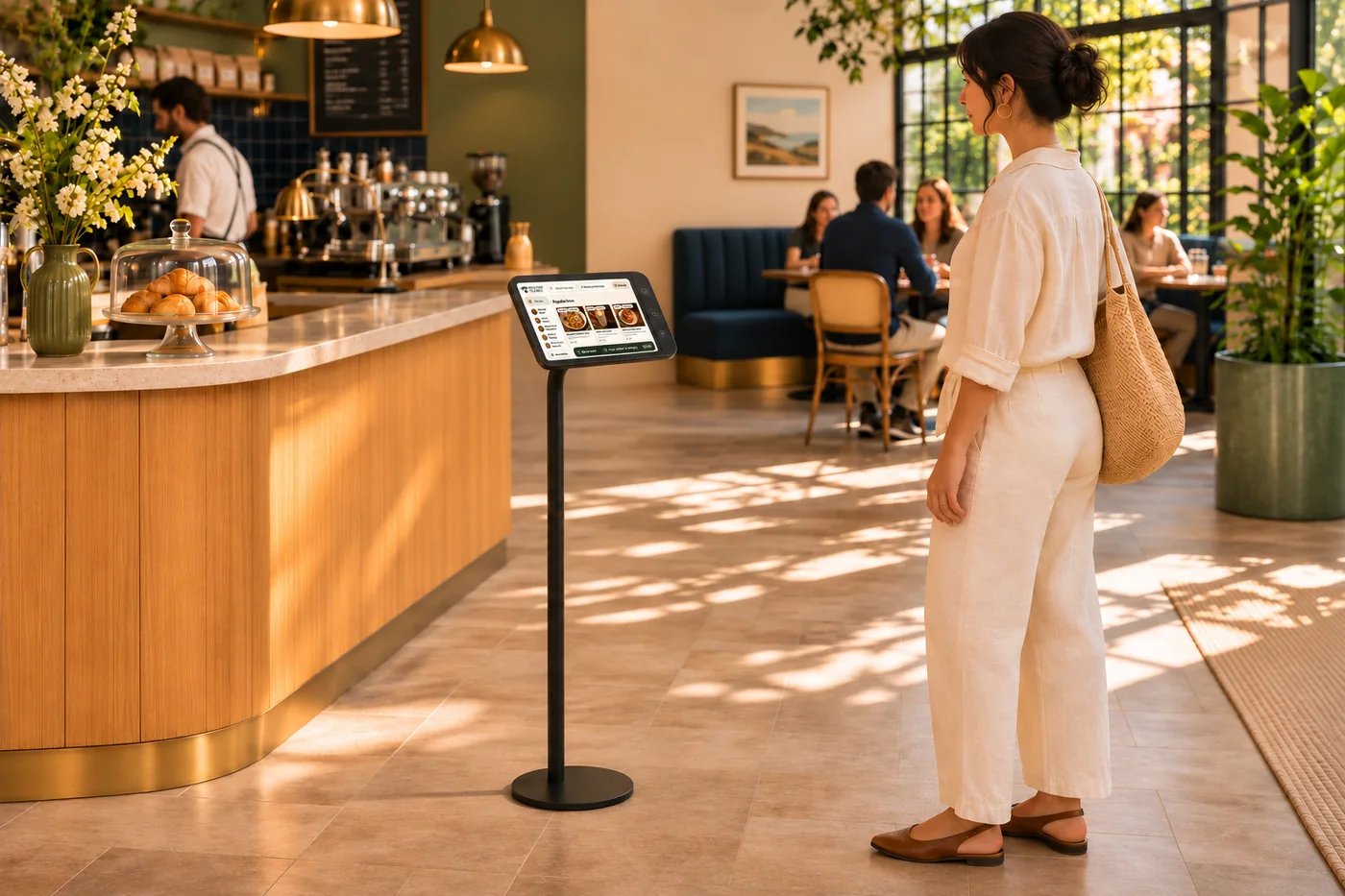
Self-order kiosks
A self-order experience that feels like your business. Let guests explore the menu and make their choices while your team keeps service moving.
Explore self-order kiosks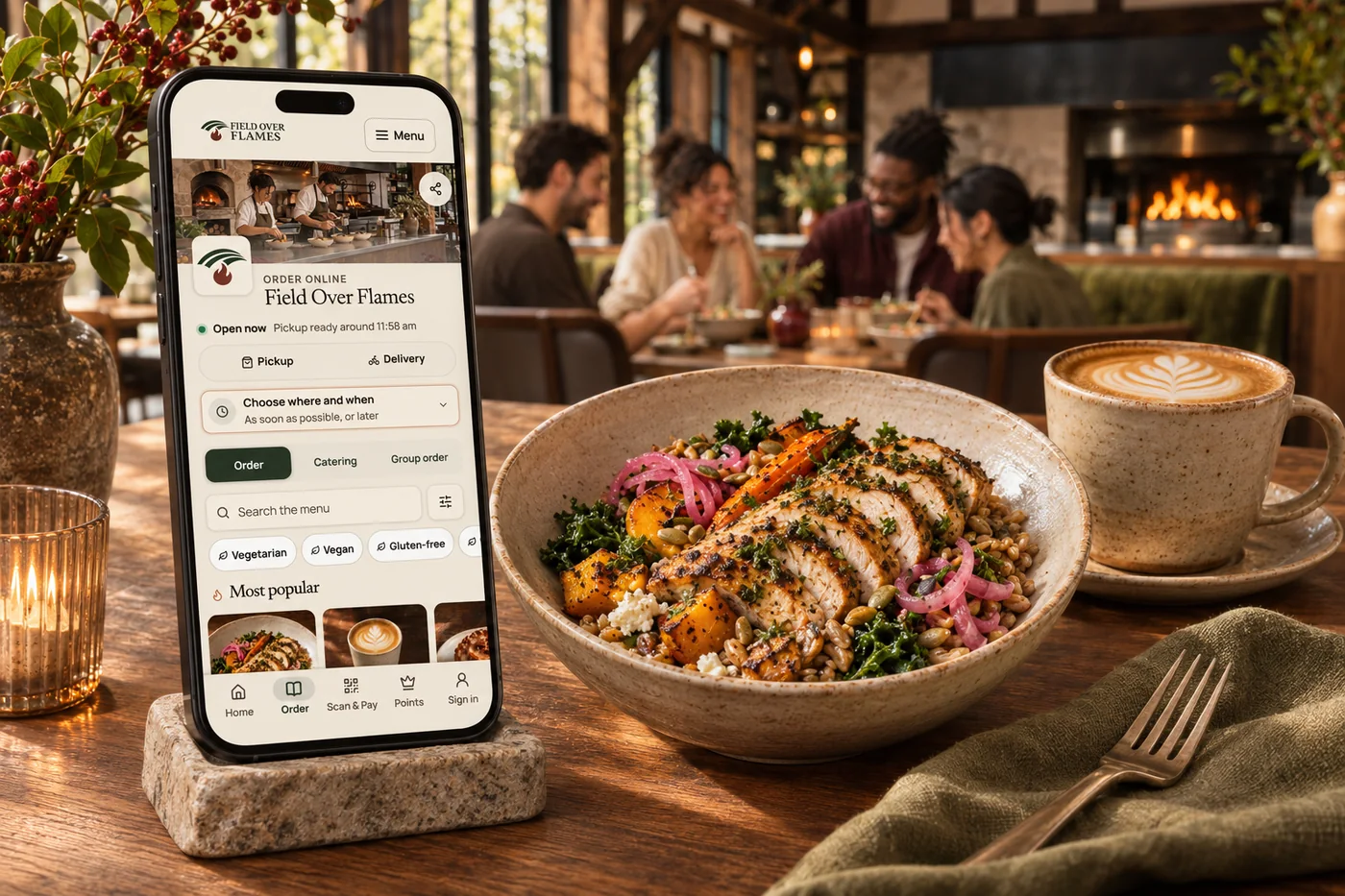
Branded restaurant apps
A guest app in your own brand, with ordering, rewards and the reasons people come back. Shape the home screen around what matters to your business.
Explore branded restaurant appsIt runs in an internet browser, on Apple TV or on Android devices connected to your display. Apple TV is our preferred option.
Orders from your branded app, kiosk and website appear alongside POS orders through your Square connection, giving guests one clear view of what is being made and what is ready for pickup.
Yes. The order notification screen is included at no additional charge in every Shop & Table plan.
Connected boards can reflect menu prices and sold-out items, helping guests choose from what the kitchen can actually serve.
Choose photo grids or clear menu lists, schedule playlists and video slides, and give each screen a role across a wall of displays.
Add QR destinations for ordering, rewards or your branded app. The screen can introduce the next visit while guests are enjoying this one.

Choose a photo-led grid or a clean menu list, with the details guests need. Bring it together with your brand and the tools your team already uses.

You are leaving shopandtable.com
We link out when a vendor’s own documentation or a regulator is the right source. The site you are about to visit has its own terms, its own privacy practices and its own content; none of it is covered by our Privacy Policy or Terms of Service, and a link is not an endorsement. It will open in a new tab.