


Choose your equipment.
Start with where you take payments and how your team works. Explore a setup before buying hardware.
One connected platform
Your business, beautifully connected.
Every detail, connected. Explore all features.
Built around your business
Your business has its own rhythm.
Ready to begin? Get started online.
Explore at your own pace
See the possibilities. Find your next step.
Looking for a definition? Browse the glossary.

One connected platform
Platform

Built around your business
Solutions
 Start with a fresh perspective.See how your website and listings show up online, and where there’s room to improve.Get your free audit All solutions

Explore at your own pace
Resources
 Your brand, elevated.Explore the curated looks in the visual studio and find your starting point.Explore the visual studio Explore the glossary
New to Square
Choose the tools that fit your business, then connect Square with your website, ordering and marketing. Set up in your workspace, with our team here when you need help.
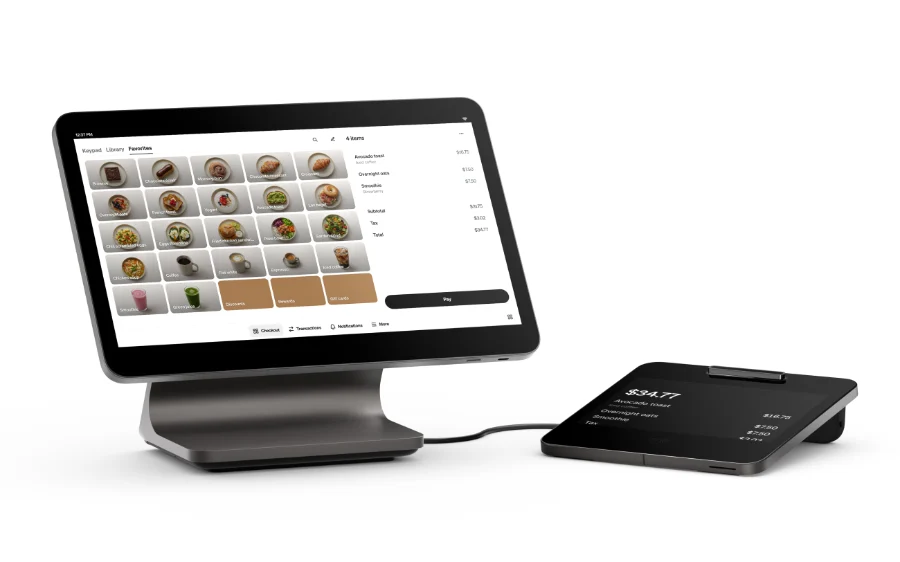
Start with where you take payments and how your team works. Explore a setup before buying hardware.
Work through your menu or catalog, prices, location details and account connections in your workspace.
Bring your brand into the website and customer tools you choose. Review the experience before putting it into everyday use.
Self-guided, with our support
Follow the setup steps in your workspace and choose what to bring online first. Book optional 15-minute calls in your first 30 days, one a week and up to four: a kickoff to set goals, check-ins for questions and a launch review of your checklist.
Ask questions along the way through portal messages, email or SMS. We can arrange a call when useful and offer practical advice as your business grows.
See Plans & Setup Options ↗You can start with Shop & Table and tell us you are new to Square. Account owners complete Square registration, identity checks and payment activation directly with Square.
Yes. Your workspace guides the steps. Optional 15-minute calls in your first 30 days are included, one a week and up to four, and our team can answer questions along the way. Extra project work is scoped separately.
Tell us what you have before buying anything new. Compatibility depends on the device and the way you plan to use it.
Square hardware, software and payment processing are separate from Shop & Table. Features depend on your plan and connected setup.

You are leaving shopandtable.com
We link out when a vendor’s own documentation or a regulator is the right source. The site you are about to visit has its own terms, its own privacy practices and its own content; none of it is covered by our Privacy Policy or Terms of Service, and a link is not an endorsement. It will open in a new tab.